iFynix Pro logo
Secure Apple Services iFynix Pro
Block OTA Utility

Block OTA updates for iPhone & iPad

A fully redesigned iFynix Pro page to help users stop unwanted software updates using the Block OTA profile. Clean layout, simple steps, and a direct download path.

Fast Setup Download, install, restart, and verify in Software Update.
Clean UI Fresh design with a more professional iFynix Pro identity.
Support Ready Need help? Contact Telegram support directly from this page.

Service Status

The Block OTA profile is available and ready for installation.

Online Download endpoint active
Latest Note It is normal if the profile appears as a tvOS beta profile. This is expected behavior for OTA blocking.

Need Help?

If you need direct support or want to ask about installation, use Telegram support.

Installation Guide

Follow the steps below to install the profile correctly on your iPhone or iPad.

1

Download the Profile

Tap the download button from your iPhone or iPad and allow the profile to be downloaded.

Use Safari on the target device for the best experience.
2

Install from Settings

Open Settings, find the downloaded profile, and complete the installation process.

You may be asked to confirm and enter your device passcode.
3

Restart & Verify

Restart your device, then open Settings → General → Software Update to verify the OTA block is active.

If it says “iOS is up to date”, the block is working.

Download Block OTA Profile

From your device, tap the button below to download the Block OTA profile. Your device will notify you once the profile has been downloaded.
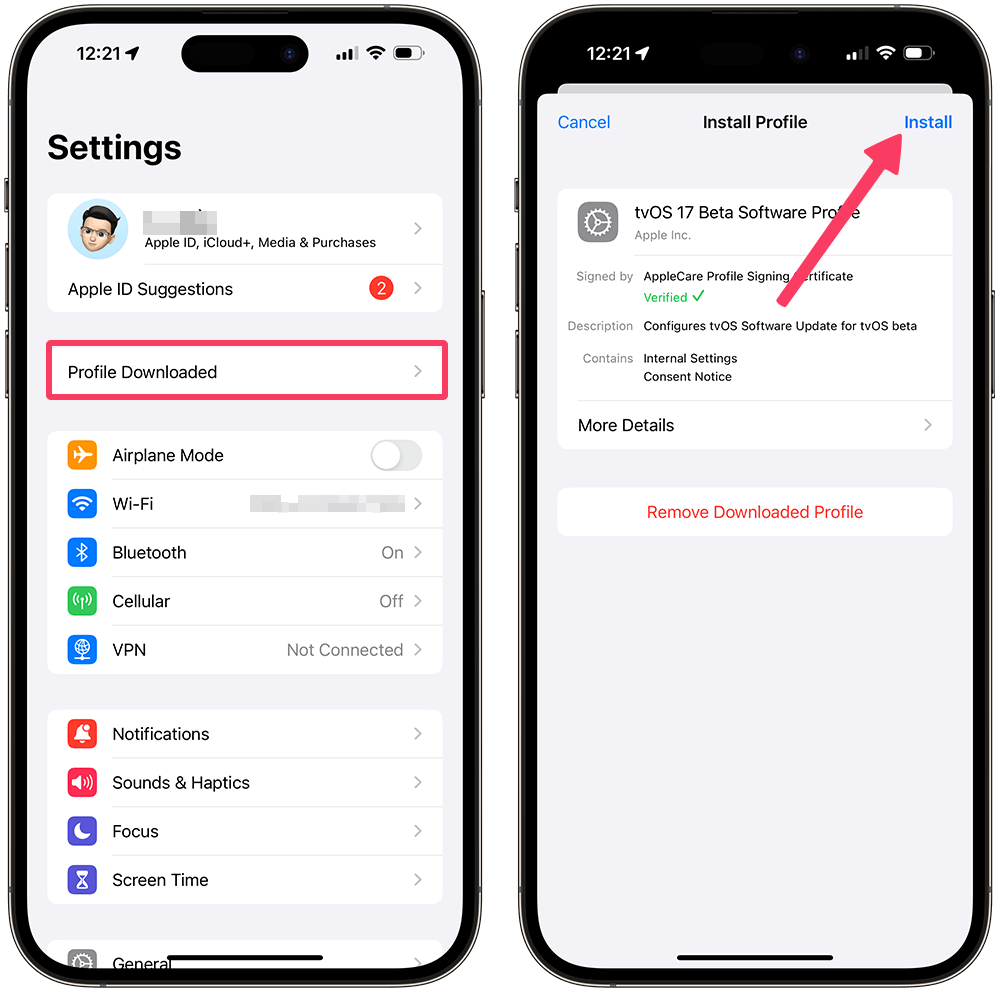
It is okay if you see that you are installing a tvOS profile. That is normal for this OTA block method.
Install Block OTA profile

After Installation

Do not forget to restart your device after installing the profile so the changes can be applied correctly.

How to confirm it worked

Go to Settings → General → Software Update. If your device displays “iOS is up to date”, updates are successfully blocked.
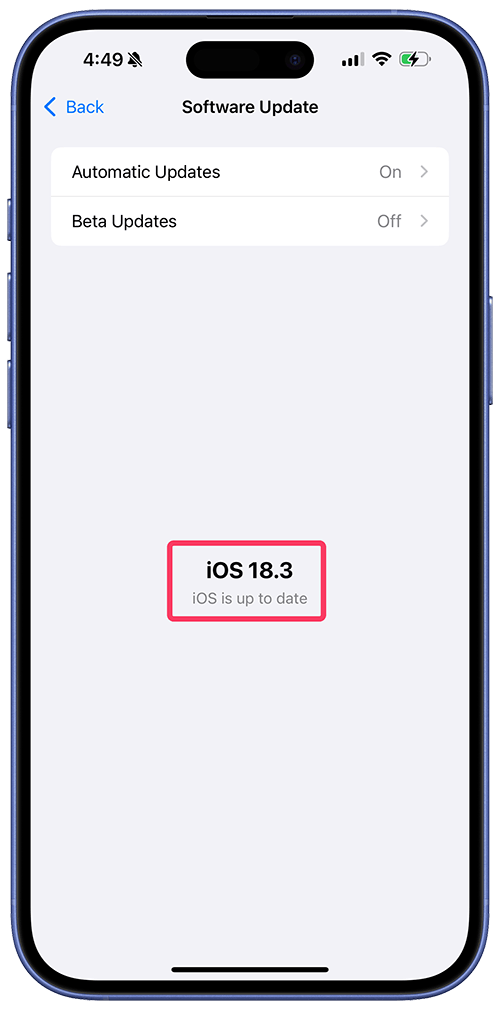
iOS is up to date

If an Update Still Appears

  1. Open Settings → General → Software Update.
  2. If Beta Updates is enabled, set it to Off.
  3. Go to Settings → General → iPhone Storage.
  4. If a software update was already downloaded, select it and delete it.
  5. Restart the device and check again.

Uninstalling the Block OTA Profile

If you want your device to update normally again, remove the profile using the steps below:
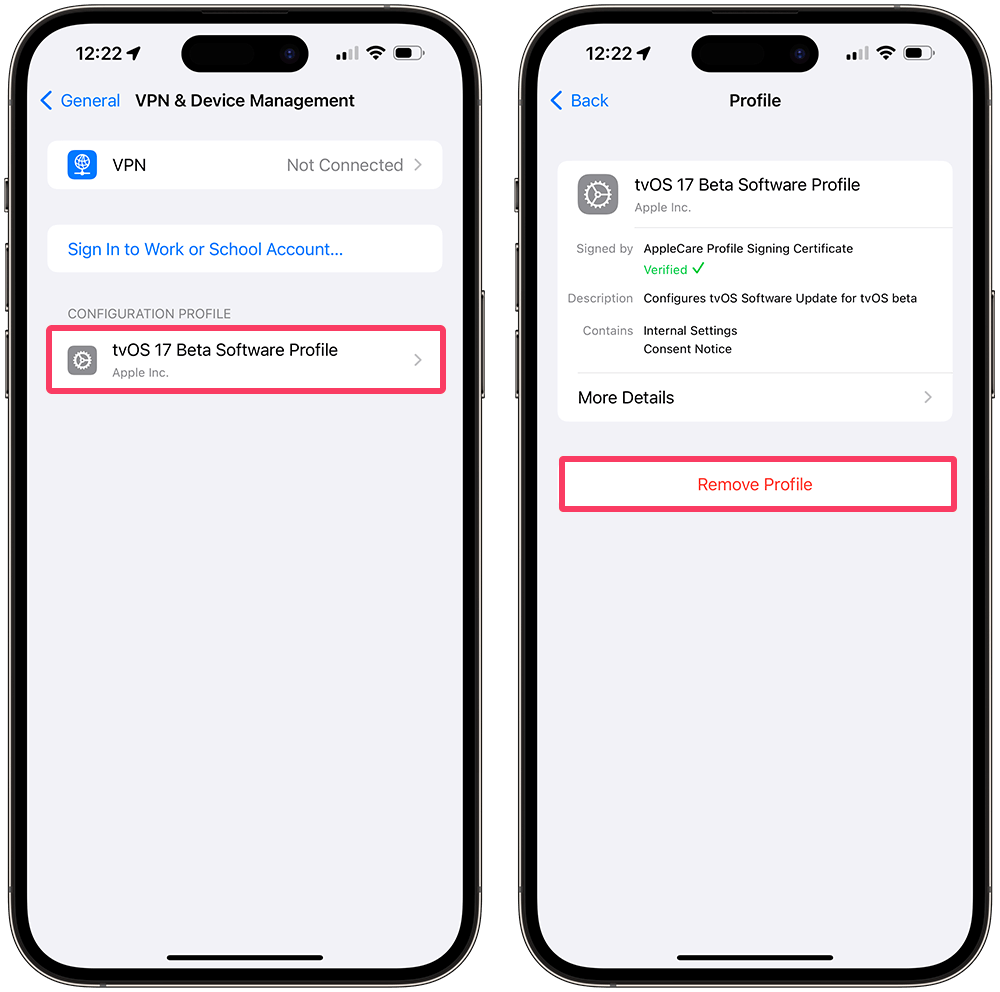
  1. Open the Settings app.
  2. Go to General → VPN & Device Management.
  3. Tap the tvOS Beta Software Profile.
  4. Choose Remove Profile and enter your device passcode.
  5. Restart your device to apply the changes.
Uninstall Block OTA profile

Important Notes

Need Help?

Choose the support method that suits you best.

Telegram Support

Direct contact with support

Ask questions, troubleshoot issues, and receive direct help for Block OTA installation.

Open Telegram

Quick Summary

Short version of the process

Download the profile, install it from Settings, restart your device, then verify the result in Software Update.

iFynix Pro Guide

FAQ

Common questions users ask about Block OTA.

Why does the profile mention tvOS?

This is expected and normal for this OTA blocking method. It does not mean your iPhone becomes an Apple TV.

What if I still see a pending update?

Disable Beta Updates, remove any downloaded update from iPhone Storage, restart the device, then check again.

Can I return to normal updates later?

Yes. Simply remove the installed profile and restart the device.